
How To Screenshot On Mac?
Screenshots can be taken with the "Printscreen" button in Windows. However, since there is no such key on the Mac, a screenshot can be taken with a few key combinations.
Certifications
- None
Packaging & Loading
- Standard
- Port: Port of Istanbul Ambarlı
- Payment: TT in advance / against BL copy
Get a Quote
Price and lead time within 48 hours — or speak with a representative instantly.
Users who are new to using a Mac computer may find it difficult at first because they are not used to the Mac. Because Mac’s operating system and keyboard layout are slightly different from other computers. One of these differences is the method of taking screenshots. Screenshots can be taken with the “Printscreen” button in Windows. However, since there is no such key on the Mac, a screenshot can be taken with a few key combinations.
There are several options for taking screenshots on Mac. Of course, you can use whichever one works for you. Here are the methods to take screenshots on Mac;
1- Capture the Whole Screen
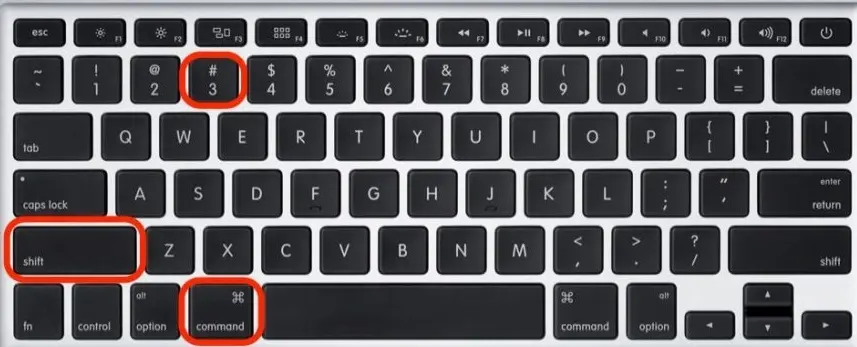
You can easily record the image of the entire screen by using the Command+Shift+3 keys on the keyboard. After pressing these keys, the equalizer sound will come. Thus, the screenshot will be taken and saved on the desktop.
2- Capture the Selected Part of the Screen
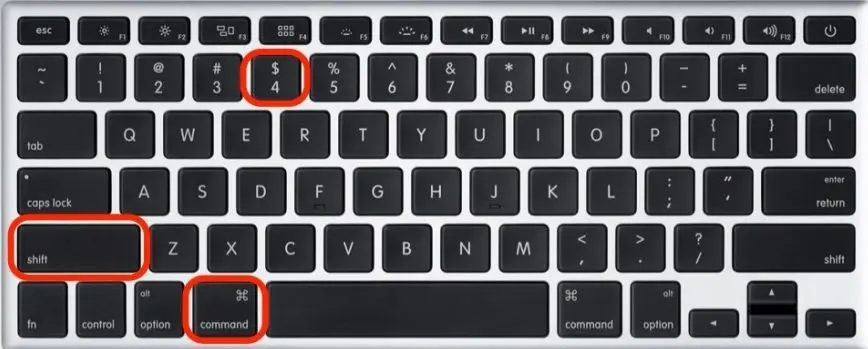
When you press the Command+Shift+4 keys on the keyboard, the mouse pointer turns into a cross. After that, you can select the desired part of the screen and save it.
The gray area you see in the picture below will be saved as a screenshot.

3- Taking a Screenshot of a Window
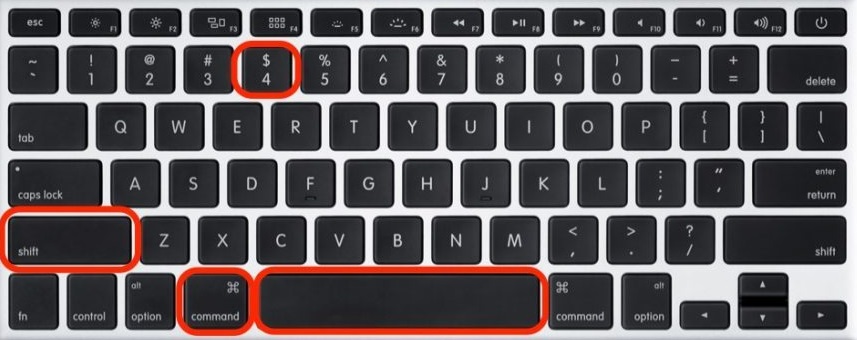
In some cases, when you want to take a screenshot, you may not want the background to appear. For this, it is enough to press the Command+Shift+4+Space keys. When you press these keys, the mouse pointer will change to the camera pointer. So you can leave the background in the shadow effect and save the screenshot of the window you want.
Note: If you do not want the screenshots to be saved on the desktop, you can copy the screenshots to the clipboard. All you have to do for this is to press the control key in addition to the combination keys mentioned above. For example, press Command+Ctrl+Shift+3 to copy a screenshot of your entire screen.

- None
Submit Request
Tell us the product and quantity you are looking for
Get a Quote
Price and lead time within 48 hours
Sign Contract
Secure payment and delivery terms
Delivery
We deliver worldwide
Phone
Head Office
Sanayi Mahallesi, Teknopark Bulvarı No: 1/4C, İç Kapı No: 112, Pendik
Product Representative
Are you looking for products from Türkiye?
Fill out the form, and we'll send you price and lead time information within 48 hours.